Things started going downhill, in my opinion, with the Windows XP "Fisher-Price" Luna interface and the Microsoft Office 2007 ribbon.
eg. The 'breathing status light' that lit up the room at night due to extreme brightness which meant every macbook of the era had stickers or tape over the LED with endless Q&A's of "How do i turn the annoying light off? You can't!". This crap design was met by articles extolling the subtle sign wave and off white hue. I kid you not. https://avital.ca/notes/a-closer-look-at-apples-breathing-li...
Apple today seem to have acknowledged their mistake here and taken away status lights completely (also a crappy design hailed as amazing since they've just gone to the other extreme) which highlights the fact that no matter what they do they're hailed as being amazing at design, even when it's contradictory from their own previous 'amazing designs'.
Apple doesn't just get a pass on crappy design. It gets endless articles praising the virtues of everything they do even when, if you think about what they did for even a second you'd realize, "that's actually just plain crap design".
I’m still trying to understand who came with the idea of charging the mouse from under, instead of from a position that would allow to use the mouse while charging…
> unless you have already used the other colours and now you need more colours
In that case you will end up with Christmas decorations. Better solution is usually placement and form.
You tap an icon that looks like the outline of a rectangle with an arrow pointing up. Then you tap the name of the printer. Then you tap another rectangle with an up arrow and then tap the word "Print".
I may have got the precise steps wrong but it really is that abstruse to print something on a tablet. Never mind that mDNS/Bonjour has done its thing - the steps to actually indicate that you want to print is frankly weird.
What on earth is that box with an up arrow actually supposed to mean? Why does the interface switch from icons to text?
Macs have the problem multiple times over, because now they have the normal menu bar and toolbar, and a Share menu that just gets arbitrary stuff dumped into by App Store apps, and the Services menu that shows up in some contexts but not others, and the Quick Actions menu that shows up in some contexts but not others, and some services can just add things directly to right click menus.
I guess printing it to paper is a form of sharing so they may have the last laugh.
"Sending" a file to another disc or on the network is non-transformative. At the far end, it's still a file.
But "printing" is inherently transformative-- you're expecting to get something clearly not a file (print-to-file pseudo-printers excepted).
I can see the desire for minimalism-- having seperate rows for "share/send" and "print" is, well, two seperate rows. But if you offer adaptable and configurable interfaces, I could see suppressing one or both depending on context or user preferences. (You have no external drives or registered share-recipients? No "Send To/Share")
But liquid glass and insane amount of bugs that arrived with it is killing me.
It was a poorly thought out design of aesthetics over ergonomics.
loved battery level indicators on old macbooks too, they kind of brought it back with led on magsafe except this new led is more annoying.
Ribbon also has a similar research behind it, just like Windows 95. For what they designed it, allowing beginners to discover all the functionality that's available, it works perfectly.
I think most of the complaints from the tech circles are completely unfounded in reality. Many non-tech people and younger ones actually prefer using Ribbon. I also like it since it is very tastefully made for Office. 2010 was my favorite Office UI. It actually doesn't get rid of shortcuts either. Most of the Office 2003 ones were preserved to not break the workflow of power users.
Where Ribbon doesn't work is when you take out the contextual activation out of it. Most companies copied it in a very stupid way. They just copied how it looks. The way it is implemented in Sibelius, WinDBG or PDFXChange is very bad.
Well, yes, but that observation doesn't prove the point you think it does.
People who were highly experienced with previous non-ribbon versions of Office, disliked the ribbon, because the ribbon is essentially a "tutorial mode" for Office.
The ribbon reduces cognitive load on people unfamiliar with Office, by boiling down the use of Office apps to a set of primary user-stories (these becoming the app's ribbon's tabs), and then preferentially exposing the most-commonly-desired features one might want to engage with during each of these user stories, as bigger, friendlier, more self-describing buttons and dropdowns under each of these user-story tabs.
The Ribbon works great as a discovery mechanism for functionality. If an app's toplevel menu is like the index in a reference book, then an app Ribbon is like a set of Getting Started guides.
But a Ribbon does nothing to accelerate the usage of an app for people who've already come to grips with the app, and so already knew where things were in the app's top-level menu, maybe having memorized how to activate those menu items with keyboard accelerators, etc. These people don't need Getting Started guides being shoved in their face! To these people, a Ribbon is just a second index to some random subset of the features they use, that takes longer to navigate than the primary index they're already familiar with; and which, unlike the primary index, isn't organized into categories in a way that's common/systematic among other apps for the OS (and so doesn't respond to expected top-level-menu keyboard accelerators, etc, etc.)
I think apps like Photoshop have since figured out what people really want here: a UI layout ("workspace") selector, offering different UI layouts for new users ("Basic" layout) vs. experienced users ("Full" layout); and even different UI layouts for users with different high-level use-cases such that they have a known set of applicable user-stories. A Ribbon is perfect for the "Basic" layout; but in a "Full" layout, it can probably go away.
Really, the most efficient interfaces are the old-style pure text mode mainframe forms, where a power user can tab through fields faster than a 3270-style terminal emulator can render them.
In the linked case study on Windows 95 they specifically tried this, creating a separate beginner mode for the Windows shell. Their conclusion was that it was a bad idea and scrapped it because it doesn't allow for organic learning and growth of a beginner into a power user on account of the wall between modes. Instead they centralized common tasks into the Start menu. I'm not sure how you would translate that learning to the design of Office or Photoshop though. Maybe something like Ribbon, but as a fixed "press here to do common actions" button in the app? Then next to that "start button" put the full power user index of categorized menu buttons?
It was different from Word 2003, but that was about all the bad you could say for it from the 'power user' perspective.
I got MS Office 97 working in Wine recently, and it's still shockingly capable. There are lots of formatting options, it can read my system TTF fonts, and it's since it's nearly thirty-year-old software, it runs ridiculously fast on modern computers.
I don't feel like MS has added many more features to Office that I actually care about, but I feel like the software has gotten progressively slower.
Earlier Word/CorelDraw/etc had a thin toolbar with lots of functionality. Barely occupied any space at just 800x600 resolution.
Nowadays, the ribbon and all other junk occupy a huge portion of the screen, even at 1920x1080.
It’s amazing how little screen area today actually shows the useful part of a document.
Instead of the Ribbon, a thin context sensitive toolbar would have been more useful.
I think the best parts of it could be replicated by just combining tabs and traditional toolbars, but that’s not complex enough of a concept to need a dedicated moniker.
Sure, but where are the beginners are we talking about? In 2007, Microsoft office had long reached dominance in the workplace and school such that the only beginners are students learning word prcessing for the first time.
I much prefer menus with toolbars that have only the most used functions.
When it first came out, I did studies of myself using it vs. the older toolbared versions of Word and Excel, and found I was quantifiably slower. This was after spending enough time to familiarize myself with it and get over any learning curve.
EFFICIENCY
The biggest problem is it introduced more clicks to get things done - in some cases twice as many or more. Having to "tab" to the correct ribbon pane introduces an extra click for every task that used to be one click away, unless the button happens to be on the same tab. Unfortunately the grouping wasn't as well thought out as it could have been. It was designed with a strong bias for "discoverability" over efficiency, and I found with many repetitive tasks that I commonly carried out, I was constantly having to switch back and forth between tabs. That doesn't even get into the extra clicks required for fancier elements like dropdowns, etc. And certain panes they couldn't figure out where to put are clearly "bolted" on.
KEYBOARD SHORTCUTS
At the same time, Microsoft de-emphasized keyboard accelerators. So where the old toolbar used to hint you the keyboard shortcut in a tooltip every time you rested your mouse over a button, the new one doesn't - making it unlikely users will ever learn the powerful key combos that enable more rapid interaction and reduce RSI caused by mousing (repetitive strain injury). In my case this manifests as physical pain, so I'm very aware of wasteful gestures.
SCREEN REAL ESTATE
The amount of text in the button captions on the ribbon is also excessive. It really isn't a toolbar at all, more of a fancy dropdown menu that's been pivoted horizontally instead of vertical. It turned the menu bar, which used to be a nice, compact, single line, into something that now takes up ~4x as much vertical screen real estate. As most users' monitors are in landscape orientation, vertical space is scare to start with; congratulations you just wasted more of those precious pixels, robbing me of space to look at what I really care about which is the document or whatever thing I'm actually working on.
DISCOVERABILITY
You used to be able to get a good sense of most software's major functionality by strolling through all the menu options. Mastery (or at least proficiency) was straightforward. With the more dynamic paradigm Microsoft adopted along with the Ribbon, there's lots of functionality you don't even see until you're in a new situation (or that's hidden to the responsive window layout, which is ironic - instead of making the thing more compact, they made portions of it disappear if your window is too small). I grant some may argue this has benefits for not appearing as overwhelming to new users (although personally I've always found clean, uniform, well thought out menus to be less jarring than the scattered and more artistically inclined ribbon). But easing the learning curve had the trade off of making those users perceptually stuck in "beginner" mode. They can't customize the ribbon as meaningfully (I used to always tailor the toolbar by removing all the icons I already knew the keyboard shortcuts for, adding some buttons that were missing like Strikethrough, and move it to the same row as the menu bar to maximize clientarea space)
In my case, after trying out the new versions for a year, I made an intentional decision to go back to the 2003 versions of Word and Excel, and never look back (forward?). They are my daily drivers. These days, I barely touch modern versions of Word and Excel, except for the very rare instance I actually need a specific new feature (i.e. a spreadsheet with more than 65k rows). If someone asks me to use the new version, I simply refuse (which has never been a showstopper - my work quality is preeminent, and once you get past policy bureaucracy it turns out clients/employers don't care what tool I use to get it done).
The whole point of a toolbar was always to be a place you could pin commands you want instant access to, just a click away. The ribbon shredded that paradigm, and in my opinion took us a marked step backward in computing. It fails across several metrics, compared to regular toolbars. I wanted to blog about it at the time in hopes of convincing the world it was a mistake, but didn't have the free time. 20 years later, I'm curious if more people share these sentiments and acknowledge its shortcomings.
Although it is bad that it does not display the keyboard shortcuts, you can push ALT and then it will tell you which letter to push next. (I just guessed that pushing ALT might do something (possibly display a menu?), and I was correct (it did not display another menu, but it did help).) This is not quite as good as using the other keys such as CTRL, or numbered function keys, but it is possible.
(I do not use those programs on my own computer, but on some other computers I sometimes have to, and this helps, although not as well as it would to use menus and other stuff instead. However, in some cases I was able to use it because of knowledge of older versions of Microsoft Office; many of the keyboard commands are the same.)
I think the menu bar is much better, and toolbars should not be needed for most things. With the menu bar it will underline the letters to push with ALT and also will tell you what other keys to use (if any) for that command. (One thing that a toolbar is helpful for is to display status of various functions that can change, such as the current font. Due to that, you might still have a toolbar, but you do not need to put everything in the toolbar. Perhaps combine the toolbar with the status bar to make it compact.)
(Something else that would improve these word processing software would be the "reveal codes" like Word Perfect. A good implementation of reveal codes would avoid some of the problems of WYSIWYG. For spreadsheet software, arranging the grid into zones, and assigning properties (including formatting and formulas) to zones, and making references work with zones, etc, would be helpful, but I don't know that any existing software does that.)
In my own software I do try to make the display compact so that there is more room for other stuff, instead of needing to put all of the commands and other stuff taking up too much space in the screen. Good documentation is helpful to make it understandable; this would work much better than trying to design the software to not need documentation, since then the lack of doumentation makes it difficult to understand.
How many beginners were there in 2007? Hardly any, PC and "Word" penetration was pretty close to 100%. We are still stuck with "beginners have to figure this out" interfaces in 2026.
The difference for me was "taste" was the goal, look good or get things done. For me getting things done won every time.
Only because they copied NeXTSTEP. Those 3D beveled controls originated in NeXTSTSP. In Windows, ctl3d.dll added raised and sunken 3D-looking buttons, beveled text boxes, group boxes with depth, a light-source illusion using highlight and shadow, all copied from NeXTSTEP.
Certainly some historic credit goes to Motif, but, there are "levels to this game" .. Motif did not jump out as "wow that looks good" IMHO. Obviously NeXT was extreme in a different way.. sort of like a symphony orchestra more than an office machine.
It is genuinely entertaining to see people defend the dull and pedestrian UI in Windows 95.
They were functionally just fine; good even compared to some modern abominations.
But the look was just plain and ugly, even compared to some alternatives at the time.
> Things started going downhill, in my opinion, with the Windows XP "Fisher-Price" Luna interface and the Microsoft Office 2007 ribbon.
Yeah I just ran it with 2000-compatible look; still ugly but at least not wasting screen space
(If it helps, I do agree with you about those years being the most… design-coordinated: when Office felt like part of Windows)
(I like to think that Visual Studio 2026 proves that the company can still do good desktop UI design; but it doesn’t help that every major first-party product is now using their own silo’d UI framework; wither MFC and CommonControls, I guess)
This was mostly because we were just starting to see computers supporting large bitmapped screen resolutions at this point; but VRAM was still tiny during this period, and so drawing to off-screen buffers, and then compositing those buffers together, wasn't really a thing computers could afford to do while running at these high resolutions.
Windows GDI + COMCTL32, incl. their control drawing routines, their damage tracking for partial redraw, etc., were collectively optimized by some real x86-assembly wizards to do the absolute minimum amount of computation and blitting possible to overdraw just what had changed each frame, right onto the screen buffer.
On the other hand, what Windows didn't yet support in this era was DirectDraw — i.e. the ability of an app to reserve a part of the screen buffer to draw on itself (or to "run fullscreen" where Windows itself releases its screen-buffer entirely.) Windows apps were windowed apps; and the only way to draw into those windows was to tell Windows GDI to draw for you.
This gave developers of this era three options, if they wanted to create a graphical app or game that did something "fancy":
1. Make it a DOS app. You could do whatever you wanted, but it'd be higher-friction for Windows users (they'd have to essentially exit Windows to run your program), and you'd have to do all that UI-drawing assembly-wizardry yourself.
2. Create your own library of controls, that ultimately draw using GDI, the same way that the Windows common controls do. Or license some other vendor's library of controls. Where that vendor, out of a desire for their controls to be as widely-applicable as possible, probably designed them to blend in with the Windows common controls.
3. Give up and just use the Windows common controls. But be creative about it.
#3 is where games like Minesweeper and Chip's Challenge came from — they're both essentially just Windows built-in grid controls, where each cell contains a Windows built-in button control, where those buttons can be clicked to interact with the game, and where those buttons' image labels are then collectively updated (with icons from the program's own icon resources, I believe?) to display the new game state.
For better or worse, this period was thus when Microsoft was a tastemaker in UI design. Before this period, early Windows just looked like any other early graphical OS; and after this period, computers had become powerful enough to support redrawing arbitrary windowed UI at 60Hz through APIs like DirectDraw. It was only in this short time where compute and memory bottlenecks, plus a hard encapsulation boundary around the ability of apps to draw to the screen, forced basically every Windows app/game to "look like" a Windows app/game.
And so, necessarily, this is the period where all the best examples of what we remember as "Windows-paradigm UI design" come from.
> This gave developers of this era three options, if they wanted to create a graphical app or game that did something "fancy":
> 1. Make it a DOS app.
This vaguely reminds me of WinG[0][1] - the precursor to DirectDraw. It existed only briefly ~ 1994-95.
My vague "understanding" of it was to make DOS games easier to port to Windows. They'd do "quick game graphics stuff" on Device Independent Bitmaps, and WinG would take care of the hardware details.
[0] https://en.wikipedia.org/wiki/WinG
[1] https://www.gamedeveloper.com/programming/a-whirlwind-tour-o...
With windows the crash was progressive so you have time to save and prepare.
I also have fond memories of windows 2000. It was rock steady and polished. I preferred it over system 8 and even OS X which had to many Unix conventions.
Windows 2000 was incredible. Running it after having wrestled with 98SE was like getting teleported from a garbage dump to sunny meadow with a fresh ocean breeze. I've never seen machines transform quite as radically as they did when upgrading from something earlier to 2000.
Then we lost even more taste, and eventually the functionality and user friendlyness, on both sides of the isle.
I've always thought the Windows 3.1 to Win2K era were exactly that. The medium is pixels on a screen, the mouse and keyboard. And there is no artifice, it's just the bare essentials.
This is a very good write-up. There's no way this level of testing and dedication could have resulted in the execrable shitshow that is Windows today.
Mac OS is going backward with accelerating speed, too. They had just started to recover from Jony Ive when they put a packaging designer in charge of UI... resulting in the "Liquid Glass" debacle, and all the other incompetent UI changes that accompanied Tahoe's rollout.
The first example I remember was ~2003ish when MS Office did a big redesign and got much bigger toolbars. That they were big is a matter of taste but that's not where I'm going with this. No, the issue was that they made too easy to ACCIDENTALLY mess up the UI. They added all kinds of customization (which is fine) but then made it so just dragging a little too long an a button would let you move the button somewhere else. So, grandpa drags the button, possible off the bar, deleting it, and now for all intents and purposes the app is unusable to him. IMO, the customization options should be buried deeper where they can't happen by accident.
This "ACCIDENTAL" modification is all the rage now. On iPhone, holding on the lock screen puts the phone in "edit the lock screen mode". Several family members have asked why the image they put on the lock screen was gone. It was because they "butt edited the screen". Put the phone in their pocket and it felt a press and went into edit mode and edited the lock screen. AFAIK, almost no one needs this shortcut. It would be fine to just go into Settings->Wallpaper->Lockscreen or something like that. But, I'm just guessing (1) some UX designer needed something todo (2) someone working on lockscreen options got tired of doing the Settings->Wallpaper->Lockscreen dance and put in a shortcut that no-one but them needs.
This same issue is all over the place. The iPhone's lockscreen while charging mode has the same issue. The user (me) picks the clock face I want. And, one of 10 times I reach for the phone from the charging stand I accidently touch the screen which changes the face. I NEVER NEED THIS. Again, this should be buried in Settings->Lockscreen->Clock Face. The shortcut a net negative.
There are many more.
This is why I hate the flashlight and camera buttons on the lock screen - which you can activate without unlocking. When you have your hands in your pockets during cold weather you’ll suddenly be ”filming”… I never use the camera on my phone anyway. Thankfully at some point they added support for removing them.
There are a lot of things in older UIs that I think every developer should have hands-on experience with, eg. using nested menus in classic Mac OS; using an MDI application on Windows 9x; using the file browser and dock on NeXTSTEP; using X11 with focus follows mouse; anything with pie menus. Not because those things are necessarily the right choices for today's GUIs, but because there are valuable lessons to be learned from them, and reading an article like this or studying an old HIG document doesn't have the same impact.
In the mid-1980s, the Apple IIc and IIGS were built to Apple's "Snow White" design language and looked slicker than most contemporaries.
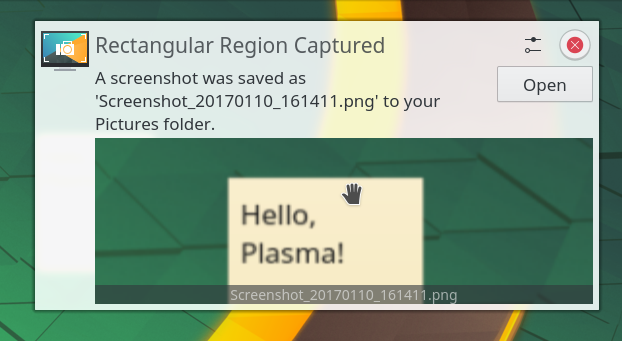
Unless something like https://kde.org/announcements/plasma/5/5.12.0/spectacle-noti... is what you consider to be passable looking of course.
I feel like UX designers don't realize that their job should have a natural tailing off as we discover and lock in the good ideas and discard the bad. Even if the ideas aren't that great, users can at least get good at however it does work, if it stays constant. Instead, we just get more dice rolls, eyecandy, and frustration.
I for one hate the power dynamic that OS and website designers have over me. They can just sneak into my house and rearrange my furniture on a whim. Even if it sucks, I would adapt to it if it stayed constant! Instead I both hate it and can't learn it, because everything is different and keeps changing when I least expect it.
At this point my brain has given into learned helplessness and won't retain much of anything at all, but it's next-level figured out that it's useless.
Designers seem to have a bad track record, and it's getting worse.
Sorry, designers.
Designing a programming language is mostly about usability. I'll be giving a talk about that in April at Yale. It's a fun topic!
I feel like there's a taste issue which is similar to tabs vs spaces or other coding styles. Some languages kind of solve this with auto-formatting but just because they choose a standard doesn't mean their standard is as readable as some other.
In languages one taste issue that comes to mind. Many languages have the invisible scope issue
foo = bar
Me though, I want the line to be understandable with as little external context as possible. I don't want to have to dig up 10, 50, 100 lines to see if a local foo has been defined or if it's member. So like python or typescript. I like foo has to be this.foo or self.foo if you want it assign the current object's member. Most programmers seem to agree because they end up using mFoo or foo_ or some naming convention to work around the issue but I think I'd prefer the language to enforce it.
I don't know which if any languages make all the different scopes more explicit.
So far I haven't liked Swift though which seems more explicit. Even though it's more explicit in some areas I feel like the majority of my time is typing boilerplate and fixing trivial syntax errors. I know programming requires syntax and, as an example, I include semicolons everywhere in JavaScript even though they are not required. That said, I would like to get all the time back in my life where I compiled some C++ only to be told "error: missing semicolon at end of class definition" or "error: extra semicolon at end of member function declaration". It feels like a language should fix this stuff for the dumb human rather than make the human do random tedious work. I get there might be times where it's ambiguous but I wonder if it's also a language design issue.
And fatal accidents due to poorly thought out control systems do occur.
https://www.fastcompany.com/1669720/how-lousy-cockpit-design...
Also fwiw using the word "intuitive" is an instant sign of someone not being a great designer.
The control stick movements, for example, are intuitive. (Early aircraft did not have control sticks!)
For a crazy example, airplane jargon has specific meanings. "Takeoff Power" officially means full power to take off with. Makes intuitive sense, right? Well, one day the pilot needed to abort a landing, and yelled "takeoff power". The copilot heard "take off power" (note the space), chopped the power, and the airliner crashed. The jargon was changed to "full power".
The Air Force, however, had their own jargon and stuck with "Takeoff Power", until one day they had the same accident and changed the jargon.
For another example, the levers for the flaps have a knob on them shaped like a flap. This way, the pilot has tactile feedback that his hands are on the right lever, and he doesn't need to take his eyes off his other tasks.
For a third example, cockpit designers put in a warning horn for a stall warning. It worked great, and so they put in other warning horns, each with a distinct sound. Unfortunately, the pilots would confuse them, and do the wrong thing. So the "horn" is now a voice that says "stall" (or something like that).
Using words for aural indicators still has not percolated out of the aviation industry. You don't have any for your car, for example. Just chimes, beeps, buzzes, and other primitive and hopeless sounds. Oh, lest I forget to mention, the stupid incomprehensible icons.
I love it. It really captures the seemingly endless new digital world that was emerging in the 90’s and in many ways is still evolving 30 years later.
I love the promo video they made too: https://youtu.be/KNLDLVJZx0o
I love it so much I wrote a blog post inspired by it: https://catskull.net/where-do-you-want-to-go-today.html
Where do you want to go today?
https://asktog.com/atc/principles-of-interaction-design/
Tog was the original design engineer for the Mac, and arguably one of the first true HCI engineers.
Then read the rest of his website. He goes into where Windows tried to copy Mac and got it horribly wrong.
One of my favorite examples is menu placement. The reason the Mac menus are at the top is because the edges of the screen provide an infinite click target in one direction. So you just go to the top to find what you want. With Windows, the menu was at the top of each Window, making a tiny click target. Then when you maximized the window, the menu was at the top, but with a few pixels of unclickable border. So it looked like the Mac but was infinitely worse.
If you're making a UI, you should read all of Tog's writings.
> Perhaps the best testament to our belief in iterative design is that literally no detail of the initial UI design for Windows 95 survived unchanged in the final product.
I shudder to imagine the look and feel of that initial UI design.
Of course I didnt discover anything else: I was afraid of clicking "Start", because I dindt know what that was that going to start, and the computer wasnt mine to brick.
I sincerely hope that one day we could go back to that road. If you want that achieved, please support me to join Apple/Microsoft to become the UI boss, fire all flat-design people and hire a small team to implement the older UI, then give a few passionate talks on EDX and conferences so people who supported flat UI magically support the older UI. They always follow whoever the lead is like headless flies.
LOL.
Windows 95 is a great case study because with that release, Microsoft did more for GUIs than Apple did through the entire decade of the '90s... and beyond.
All of it is now out the window (pun invited). It's a race to the bottom between Microsoft and Apple, with Microsoft having a HUGE head-start. But Apple has really stepped up to the plate with Tahoe, crippling it with big enough UI blunders to keep them in the enshittification game.
When MS gutted the theming engine with the release of Windows 8 (flat rectangles only) I was devastated.
I don’t agree that transparency is always a detractor. Judicious use can be a net positive, but it doesn’t work for all themes and there should be an option to turn it off. Personally I didn’t find the W7 variation of Aero to be bad at all.
...I'm guessing you haven't used Windows 11?
--------
By "rounded corners" are you referring to rounded-off corners in the nonclient area (such that the hWnd's rect is not clipped at all)? If so, then no: those would be rendered using a 9-grid[1] and have always been supported.
If you're referring to how so many fan/community-made msstyles for Windows 10 retain the sharp corners, I understand that's not a limitation of DWM or msstyles, just more that you need to do a lot of legwork when defining nontrivial corners in an msstyles theme; it can be done (there are plenty of examples online, e.g. look for Windows XP's style ported to Windows 10), it's just that most people don't go that far.
-----
[1] In msstyles, the 9-grid defines how a rectangular bitmap is stretched/scaled/tiled to fill a larger area; it's very similar to how CSS image borders are defined with `border-image-slice`.
Whatever the case, rounded corners on the titlebars and window chrome were common in XP/Vista/7 custom msstyles but were nowhere to be seen for 8/8.1 custom msstyles. It was one of the most frustrating aspects of that era of Windows for me.
Early experiments with totally new theme were rather unpleasant [2] and Watercolor was abandoned in favor of more familiar 9x looking theme as an option. W11 still comes with that old 9x widgets look - slightly flattened because of that trend but it's still there buried beneath for compatibility reasons. And I'm pretty sure they won't escape with that like Apple did with Aqua away from Platinum.
[1] - https://betawiki.net/wiki/Watercolor
[2] - https://betawiki.net/wiki/Windows_XP_build_2416#Gallery
Forcing users to click on graphical elements presents many challenges: what constitutes an "element"; what are its boundaries; when is it active, inactive, disabled, etc.; if it has icons, what do they mean; are interactive elements visually distinguishable from non-interactive elements; and so on.
A good example of bad UI that drives me mad today on Windows 11 is something as simple as resizing windows. Since the modern trend is to have rounded corners on everything, it's not clear where the "grab" area for resizing a window exists anymore. It seems to exist outside of the physical boundary of the window, and the actual activation point is barely a few pixels wide. Apparently this is an issue on macOS as well[1].
Like you, I do have a soft spot for the Windows 2000 GUI in particular, and consider it the pinnacle of Microsoft's designs, but it still feels outdated and inneficient by modern standards. The reason for this is because it follows the visual trends of the era, and it can't accomodate some of the UX improvements newer GUIs have (universal search, tiled/snappable windows, workspaces, etc.).
So, my point is that eschewing graphics as much as possible, and relying on keyboard input to perform operations, gets rid of the graphical ambiguities, minimizes the amount of trend following making the UI feel timeless, and makes the user feel more in command of their experience, making them more efficient and quicker.
This UI doesn't have to be some inaccessible CLI or TUI, although that's certainly an option for power users, but it should generally only serve to enable the user to do their work as easily as possible, and get out of the way the rest of the time. Unfortunately, most modern OSs have teams of designers and developers that need to justify their salary, and a UI that is invisible and rarely changes won't get anyone promoted. But it's certainly possible for power users to build out this UI themselves using some common and popular software. It takes a bit of work, but the benefits far outweigh the time and effort investment.
I agree, that the interactivity should be primarily keyboard-driven. However, mouse input is useful for many things as well; if there are many things on the screen, the mouse can be a useful way to select one, even if the keyboard can also be used (if you already know what it is, you can type it in without having to know where on the screen it is; if you do not know what it is, you can see it on the screen and select it by mouse).
> Forcing users to click on graphical elements presents many challenges: what constitutes an "element"; what are its boundaries; when is it active, inactive, disabled, etc.; if it has icons, what do they mean; are interactive elements visually distinguishable from non-interactive elements; and so on.
At least older versions of Windows had a more consistent way of indicating some of these things, although sometimes they did not work very well, often they worked OK. (The conventions for doing so might have been improved, although at least they had some that, at least partially, worked.)
> A good example of bad UI that drives me mad today on Windows 11 is something as simple as resizing windows. ... it's not clear where the "grab" area for resizing a window exists anymore
I had just used ALT+SPACE to do stuff such as resize, move, etc. I have not used Windows 11 so I don't know if it works on Windows 11, but I would hope that it does if Microsoft wants to avoid confusing people. (On other older versions of Windows, even if they moved everything I was able to use it because most of the keyboard commands still work the same as older versions of Windows, so that is helpful (for example, you can still push ALT+TAB to switch between full-screen programs, ALT+F4 to close a full-screen program, etc; I don't know whether or not there is any other way to do such things like that). However, many of the changes will cause confusion despite this, or will cause other problems, that they removed stuff that is useful in favor of less useful or more worthless stuff.)
Modern UIs aren't great with discoverability, either however and are not an example that should be followed.
There are still ways to help, such as having a menu bar, and having good documentation. (Documentation is more important, in my opinion; but both are helpful.)
There are standards and common conventions for a lot of this in the Windows 9X/2000 design language, and even in basic HTML. These challenges could have been solved (for values of) by using them consistently, and I think we might have been there for a little while, at least within the Windows bubble. The fact that we threw all of those out the window with new and worse design, then did that again a few more times just to make sure all the users learned to never bother actually learning the UI, since it will just change on them anyway, doesn't entail that this is an unsolvable problem (well, it might be now, but I doubt it was back in 1995).
> Like you, I do have a soft spot for the Windows 2000 GUI in particular, and consider it the pinnacle of Microsoft's designs, but it still feels outdated and inneficient by modern standards. The reason for this is because it follows the visual trends of the era, and it can't accomodate some of the UX improvements newer GUIs have (universal search, tiled/snappable windows, workspaces, etc.).
I fail to see why any of these features couldn't be implemented within the design constraints of the Windows 9X/2000 design language. There are certainly technical constrains, but I can't see any design constrains. They were never implemented at the time, and those features didn't become relevant until we'd gone through several rounds of different designs, so we never had the opportunity to see how it would work out.
The Windows 95 User Interface: A Case Study in Usability Engineering (1996) - https://news.ycombinator.com/item?id=12330899 - Aug 2016 (72 comments)
> The Windows 95 user interface design team was formed in October, 1992... The number of people oscillated during the project but was approximately twelve. The software developers dedicated to implementing the user interface accounted for another twelve or so people
I still don't understand what happened starting around 2010-ish (from my observations at the time) that we went from being able to handle a company's worth of software with 30 people, to needing 30 people for every individual project. Startups with minor products had team-pages with 15 people.
Meanwhile gtk now puts those on opposite sides of the window title bar by default.
Decades ago, MacOS properly had the close box for windows on the opposite side from minimize etc. widgets; now the one destructive window action could be reasonably safe without confirmation. Then Windows started gaining popularity and nobody ever did it the right way by default again. A pity for the sharp minds at Xerox PARC.
If you do want to optimize for usability you have to make sure you aren't making the system more consumptive at the same time. The prime example from the article is trading a moment where the user must take initiative with a menu. More useable less useful. Lower the floor not the ceiling etc. Windows (and iOS) did make genuine improvements to OSs but because of decisions like these most users are locked out of enjoying them.
How did the Windows 95 user interface code get brought to the Windows NT code base?
https://devblogs.microsoft.com/oldnewthing/20251028-00/?p=11...
NT got new 9x shell with 4.0 release but a beta package could be installed on 3.51 as well - tho, that could render some compatibility issues.